BetterLocale Doc
AI-powered translation for websites, documents, and text
by Christian Drapatz

AI-powered editing and translation
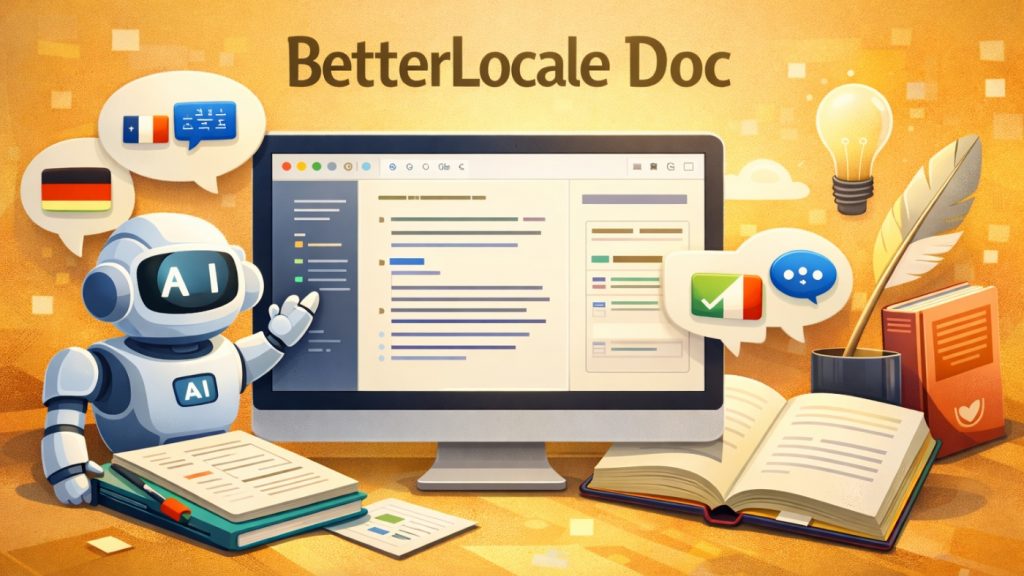
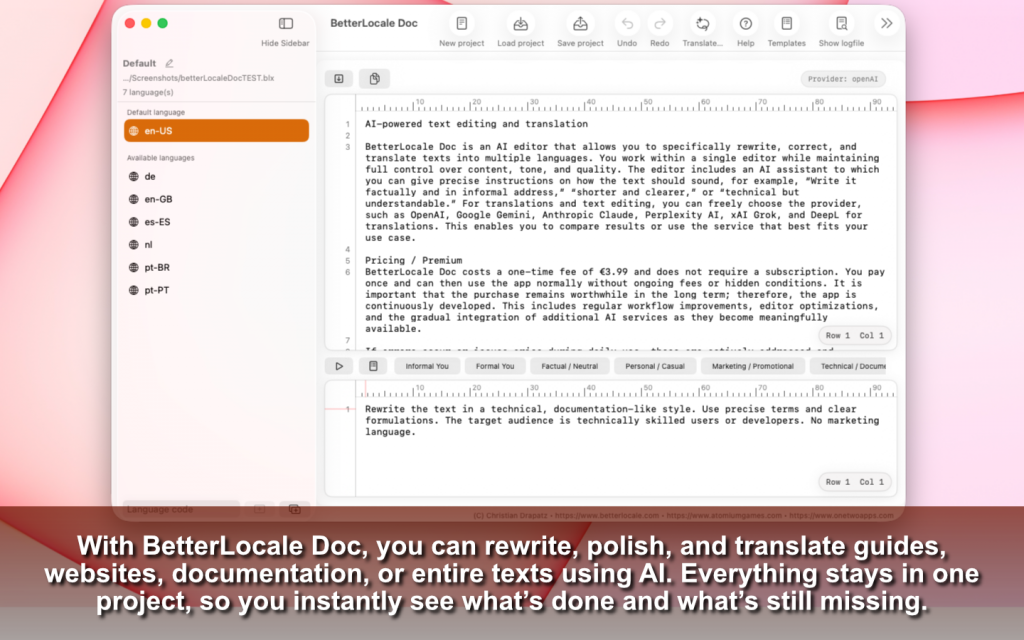
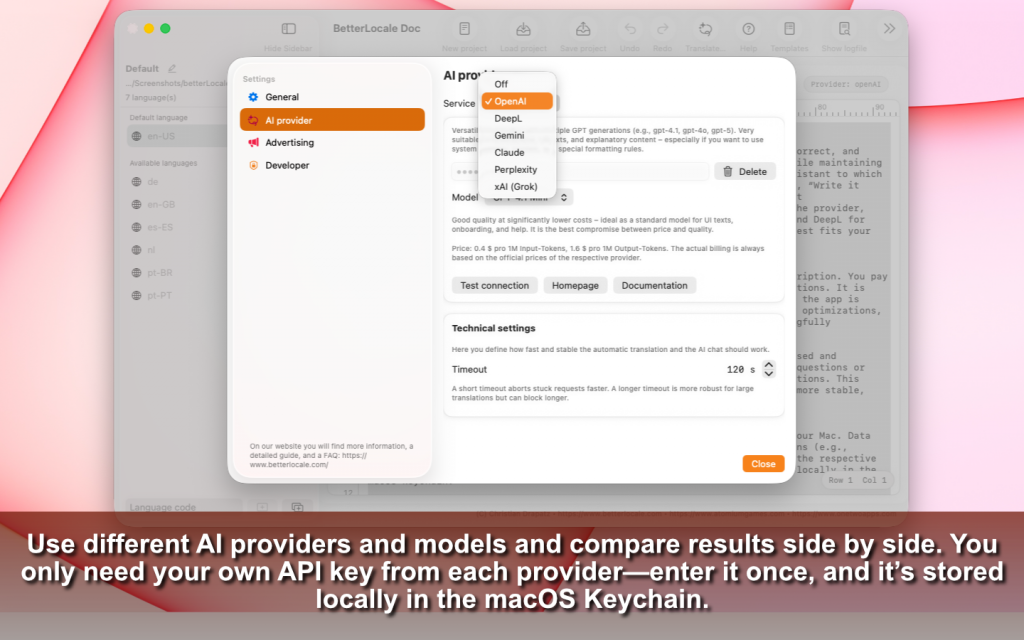
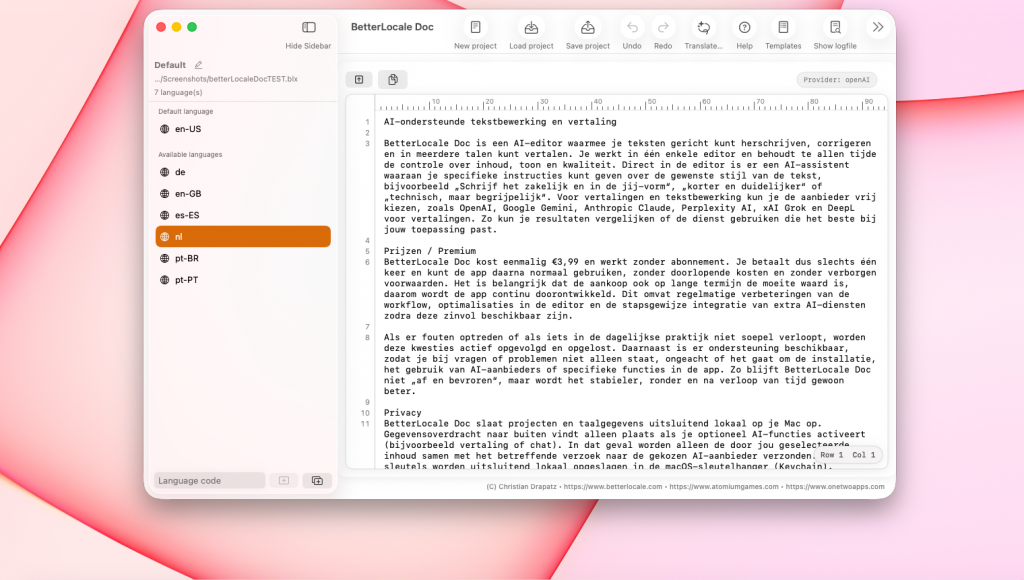
BetterLocale Doc is an AI editor that lets you rewrite, correct, and translate text into many languages. You work in a single editor and stay in control of content, tone, and quality at all times. The built-in AI assistant can follow clear instructions on how the text should sound, for example: “Write it factual and in an informal tone”, “shorter and clearer”, or “technical but easy to understand”. For translation and text work you can freely choose the provider, such as OpenAI, Google Gemini, Anthropic Claude, Perplexity AI, xAI Grok, and DeepL for translations. This way you can compare results or pick the service that fits your use case best.

Available on the Apple App Store
One click, and AI helps you write, refine, and translate your texts.
Why BetterLocale Doc
BetterLocale Doc is for anyone who writes or maintains content and wants everything in one place. Below are the core features that make daily work faster and more consistent.

Have you tried the app “BetterLocale Code”?
BetterLocale Code is your macOS tool for Xcode localizations. Manage and convert XCStrings, .strings, and .lproj files in one place, import languages anytime, and keep translations clean and consistent even with AI support.
Getting started
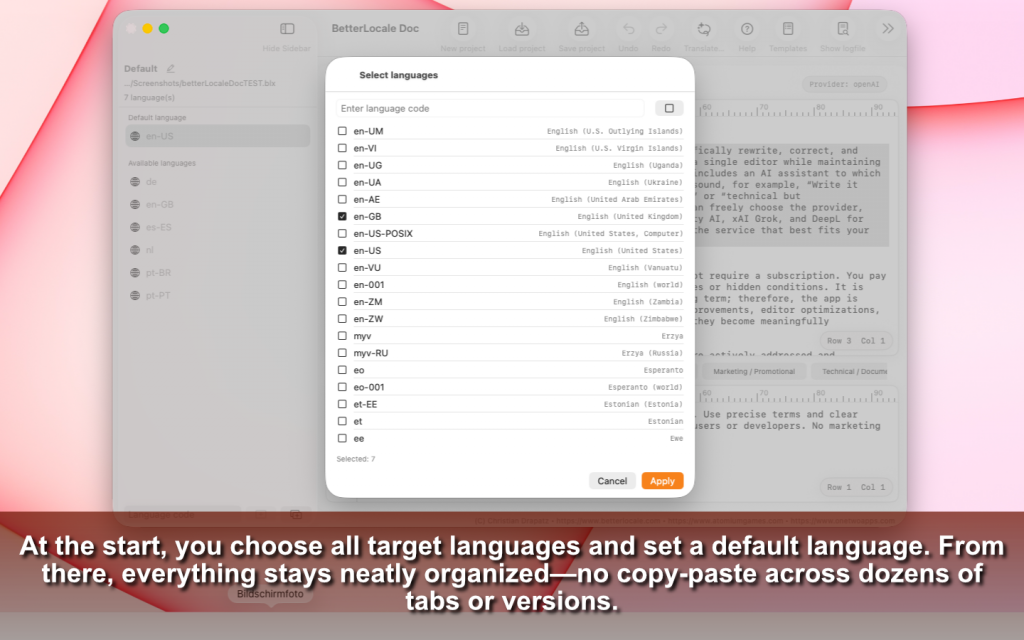
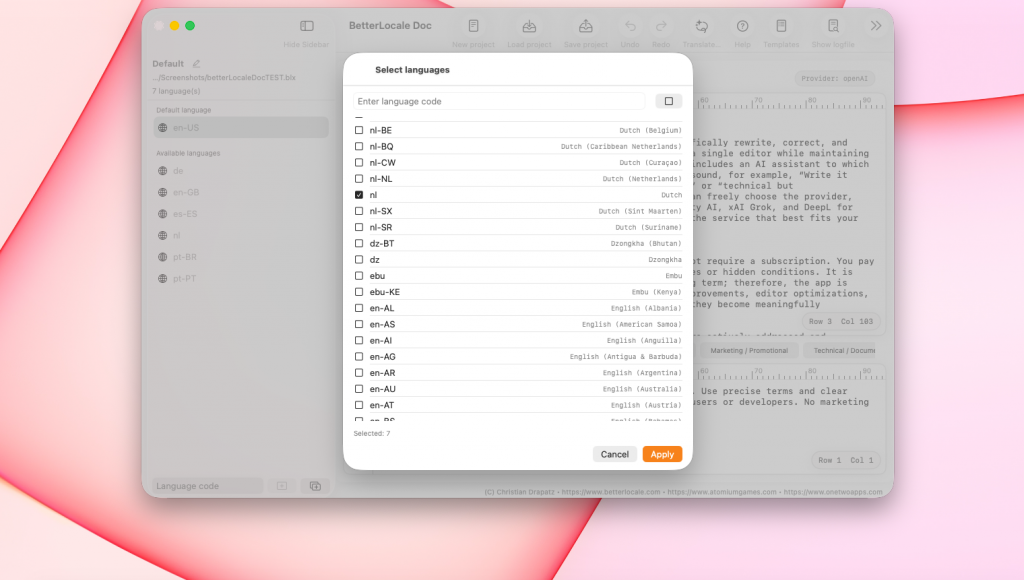
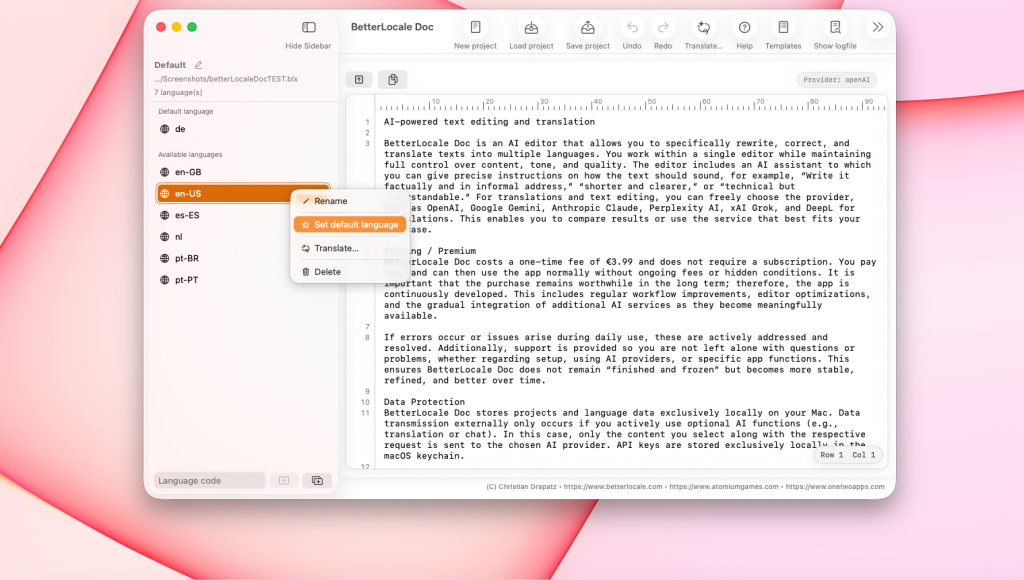
If you start with an empty project, the first step is selecting languages. You decide which languages your document should be translated into. You can change this later at any time by adding more languages or removing ones you no longer need. Finally, you set the default language. This is the “master” language you edit first and the reference for all translations.
This helps because you always have one clear source text, you can spot changes faster since the default language stays the anchor, and you end up with more consistent translations because context is managed cleanly.
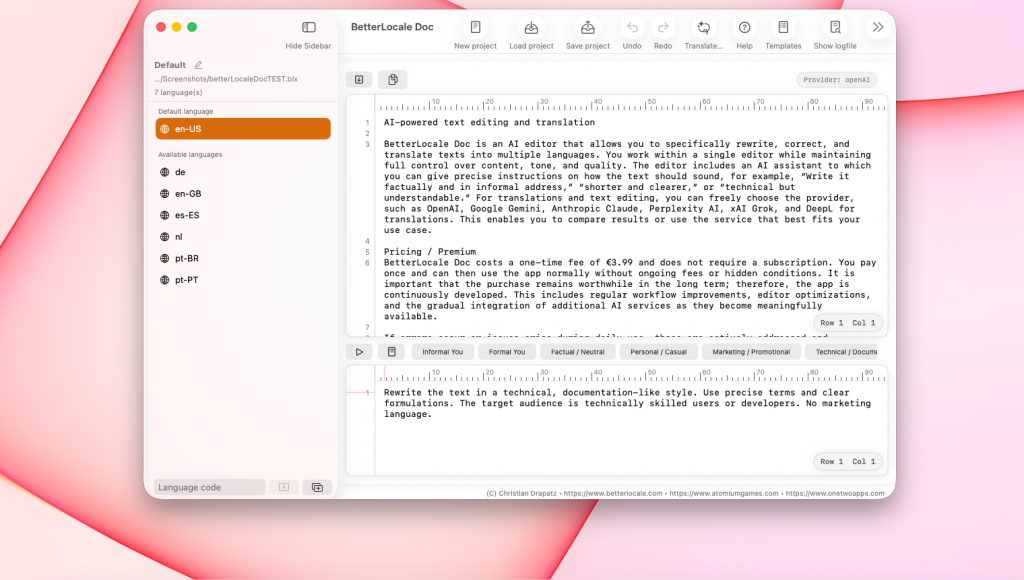
Next, you write or paste your content into the editor. That can be a short text or a longer document with multiple sections. In most cases you start in the default language. Then you can use the built-in AI assistant and give concrete instructions, for example: “Write it factual and informal”, “make it shorter and clearer”, or “make it technical but easy to understand”. If needed, you let the AI correct or rephrase the text, review the result, and adjust until it fits your purpose.
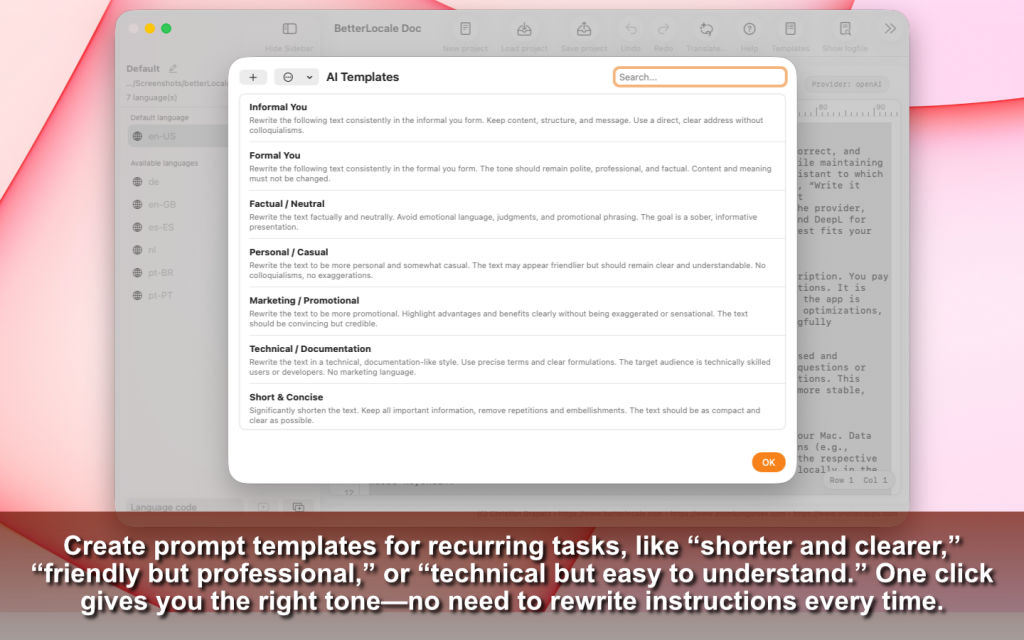
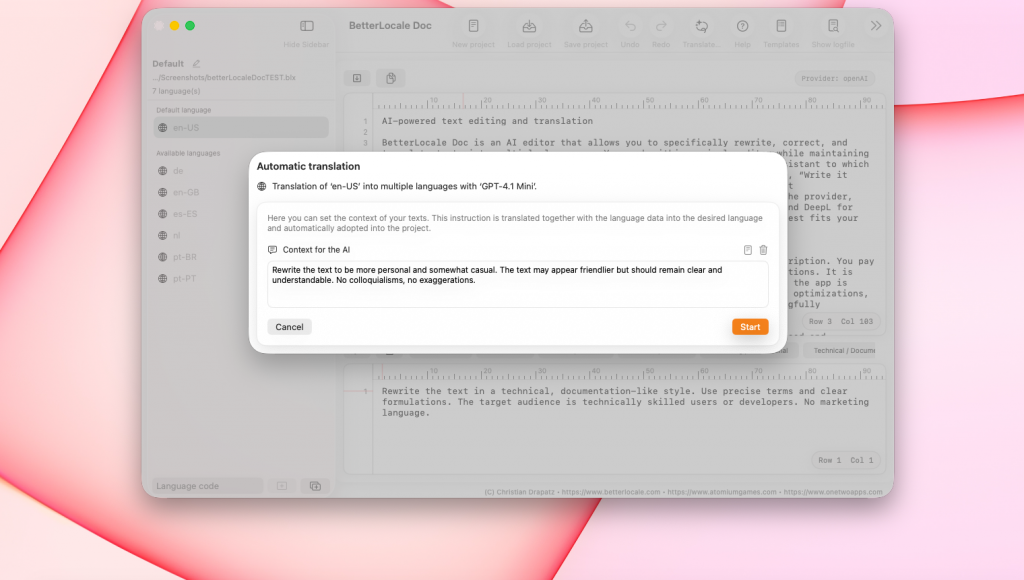
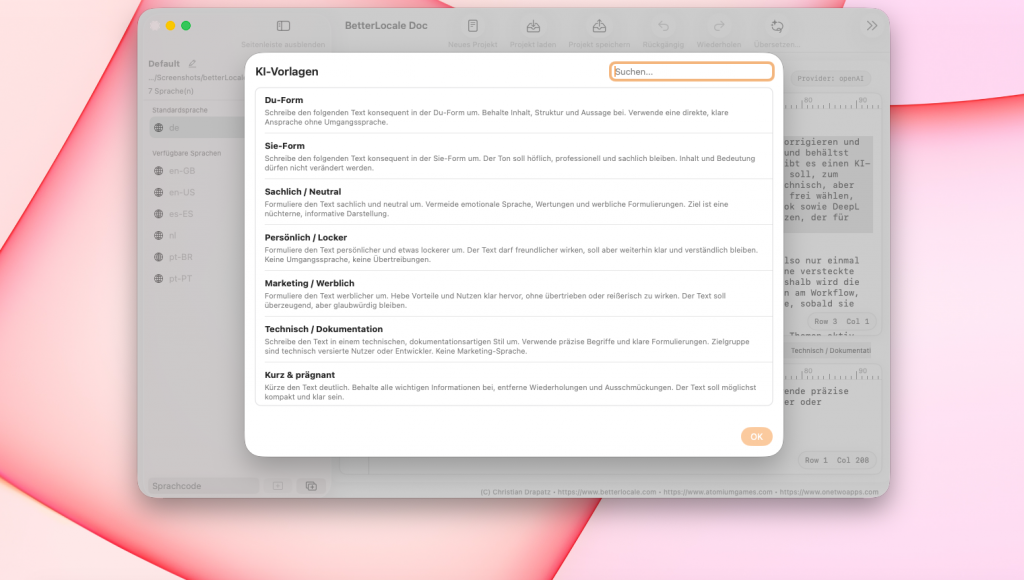
If you often work on similar texts, templates are especially useful. You can create templates for recurring tasks, such as “shorter and clearer”, “more friendly”, “technical but understandable”, or different styles like “App Store” and “Website”. That makes your work more consistent and faster, and you do not have to rethink instructions every time.
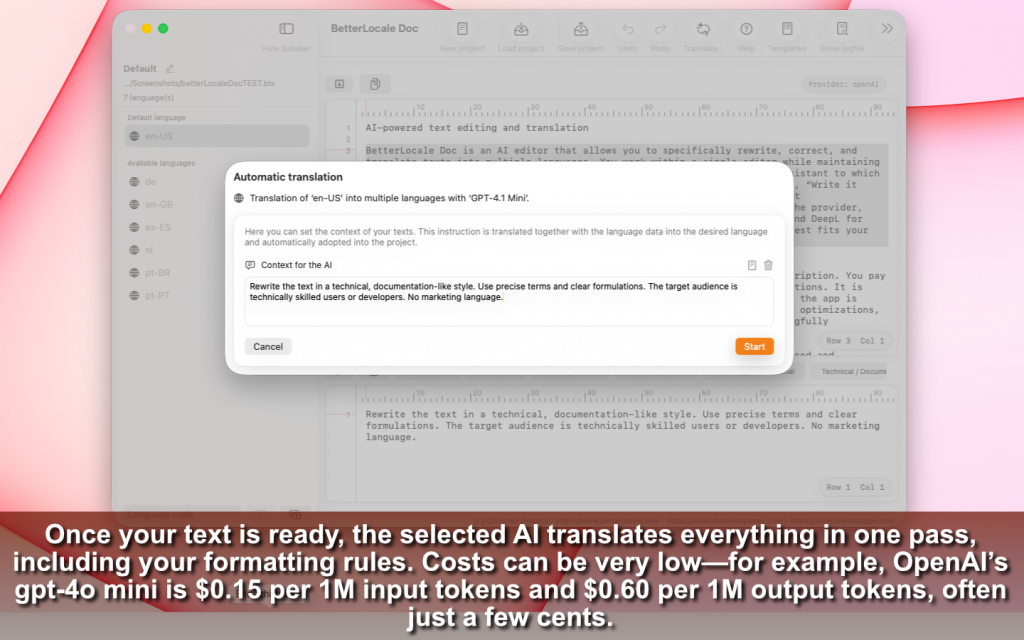
Once your texts are complete, you can generate translations directly in BetterLocale Doc. The app uses an AI service of your choice. Currently supported are OpenAI, Google Gemini, Anthropic Claude, Perplexity AI, xAI Grok, and DeepL.
To use a provider, you need your own account there. You will receive an API token that enables access to the API and handles billing. You enter that token in BetterLocale Doc under Settings. It is stored only locally on your Mac and is not sent to us. Before your first translation run, you should use the connection test so you can verify token, endpoint, and network access without running a full translation.
Costs depend heavily on provider, model, and text volume. Many providers bill by “units” (for example tokens or characters). With ChatGPT / OpenAI the logic is typically:
A text is split into tokens (a single word can be multiple tokens depending on length and special characters).
Input (your text + context) and output (the generated translation) are billed separately.
So you pay both for what you send and for what you receive. To control costs, it usually helps to translate only fields that are missing or changed, and to keep context short and precise.
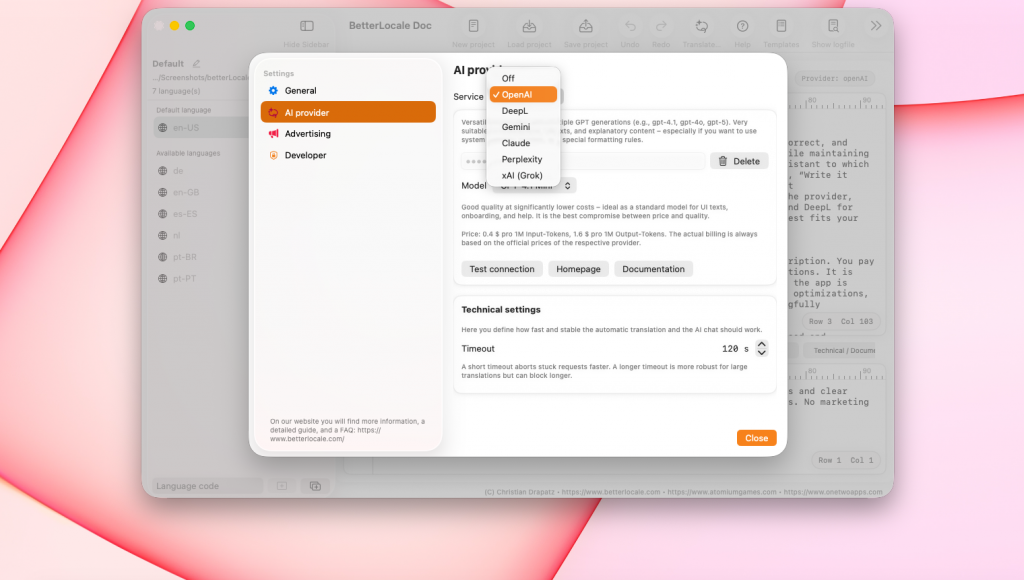
Create an AI API key and enter it in the app
To use automatic translations and the AI chat in the app, you need an API key from an AI provider.
Think of it as a personal access code: the provider can tell the request comes from you and bills usage to your account.
The app currently supports: OpenAI, Google Gemini, Anthropic Claude, Perplexity AI, xAI Grok, and DeepL.
Setup is very similar for all providers.
What you should know first
• API key = access code: You enter it in the app so it can send requests to the provider on your behalf.
• Costs are billed to you: The app sends the requests, but billing happens directly in your provider account.
• Billing is often required: Many providers only allow API requests after a payment method is added. Without billing you may get errors or very small limits.
Quick start: set up in 5 steps
1. Create an account or sign in
Go to your provider’s website and sign in.
2. Create an API key
Look for a section like API, Developer, Dashboard, or API Keys and create a new key there.
3. Copy the key and store it safely
Copy the key immediately and store it securely, ideally in a password manager.
Important: Many providers show the full key only once.
4. Enable billing/payment
Add a payment method or enable billing. Otherwise API requests often won’t work, or will be limited.
5. Enter the key in the app
Open the app → Settings → AI Providers → select a provider → paste the API key → Save
After that you can start translations and use the AI chat.
Provider guides (with direct links)
OpenAI (ChatGPT / OpenAI API)
1. Open the OpenAI dashboard:
https://platform.openai.com/
2. Create an API key:
https://platform.openai.com/settings/organization/api-keys
3. Set up billing/payment method:
https://platform.openai.com/settings/organization/billing/payment-methods
Tip: You often see the full key only once, later only partially.
Claude (Anthropic)
1. Open the Claude console:
https://platform.claude.com/
2. In the console, go to Account Settings and create an API key there.
3. Enable billing in the console so you can use the API.
Note: It previously used console.anthropic.com in some places; it is now moving to platform.claude.com and may redirect.
Gemini (Google)
1. Open Google AI Studio (API keys):
https://aistudio.google.com/app/apikey
2. If you don’t have a project yet, AI Studio often creates a default project automatically. Otherwise select/import a Google Cloud project.
3. Create and copy the API key.
Gemini API key documentation:
https://ai.google.dev/gemini-api/docs/api-key
PerplexityAI
1. Open account/settings:
https://www.perplexity.ai/account
2. In Settings, open the </> API tab and generate a key (“Generate API Key”).
3. Alternatively (depending on the UI), use the API portal:
https://www.perplexity.ai/account/api
Optional: API groups can be useful if you want separate keys (e.g. “Dev” and “Prod”).
xAI Grok
1. Open the xAI account/developer area:
https://x.ai/
2. In the developer/API area, create a new API key and copy it.
3. Enable billing/payment if required so API requests are not blocked.
Note: The exact location of the API key page may change depending on the xAI UI. Search for “API”, “Developers”, or “API Keys”.
DeepL
1. Open DeepL and sign in:
https://www.deepl.com/
2. Go to Account → API Keys & Limits.
3. Click Create key, enter a name, confirm, and copy the key.
DeepL help article:
https://support.deepl.com/hc/en-us/articles/360020695820-API-key-for-DeepL-API
Notes on costs and privacy
• Using AI APIs is usually paid and billed directly to your provider account, typically based on text volume (tokens).
• The app sends only the content you select (e.g. the texts to translate) plus your instruction to the provider.
• Your API key is stored only locally on your Mac in the Keychain and is not shared with third parties.
Security
Treat your API key like a password:
• Do not share it and do not copy it into public repos.
• If you think the key is compromised, disable it in the provider dashboard and create a new one.
• If you use multiple devices or projects, it’s best to use a separate key per device/project so you can revoke access without breaking everything.
Once your base text is ready, you start translating into the selected languages. You can choose which provider to use. You can also decide whether to test one language first or translate all languages at once. You can add notes for tone, audience, or purpose. You can regenerate translations at any time, for example after changing the source text or when you want to try a different provider.
More features
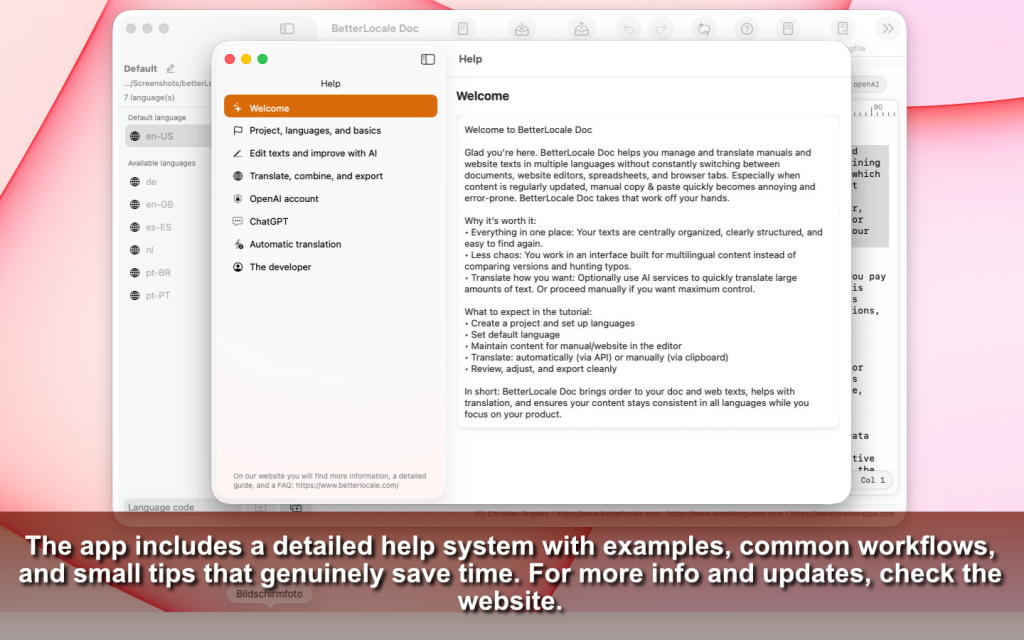
If you have questions or get stuck, the app includes a help section that explains the most important features in a short and clear way. You will also see typical use cases and tips on how to get good results faster.
If you notice something that could be improved, or if you find a bug, you can send feedback directly from inside the app. That way you do not need to search for contact details, and you can report issues in the right context.
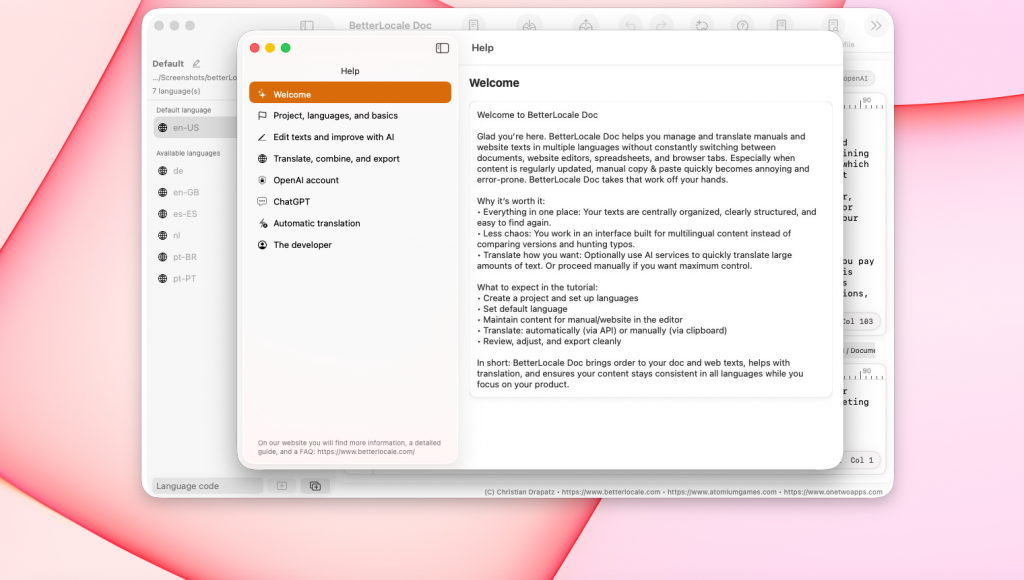
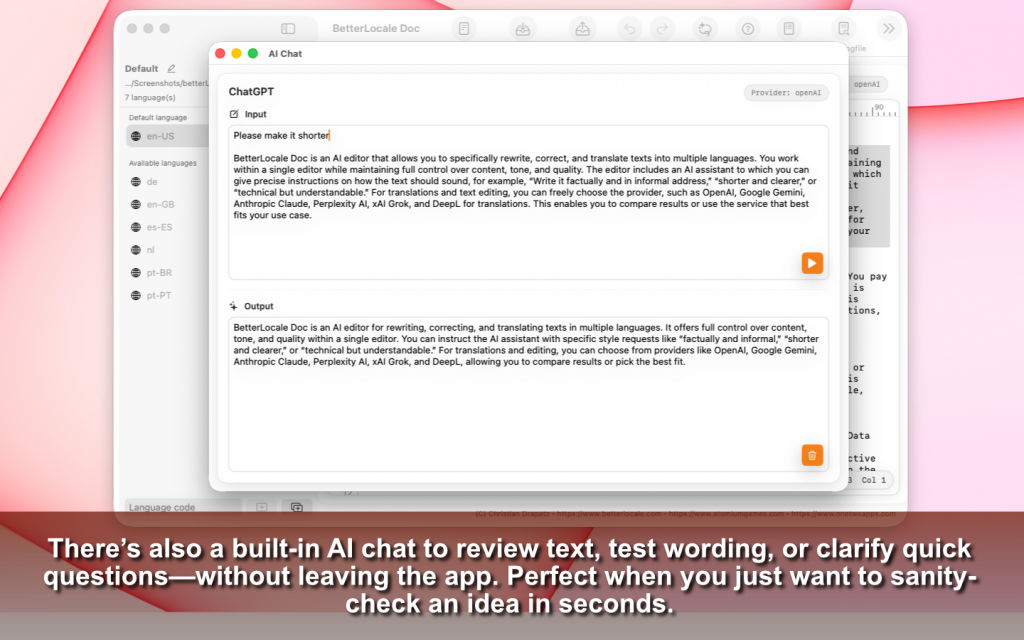
The AI chat is designed to give you quick support without leaving your workflow. Use it to clarify questions, get wording alternatives, or generate multiple variants for different audiences or tones. It is also useful for structure, for example if you want help organizing a section or checking which points are still missing. The chat is great for brainstorming, and you can copy the best version straight into your document.
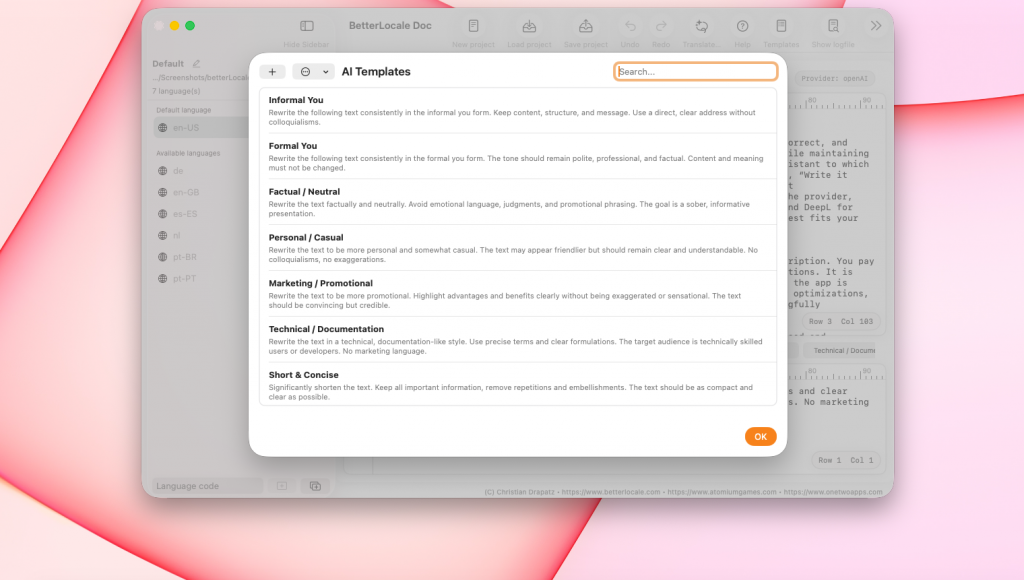
In BetterLocale you can define templates so you do not have to type recurring AI instructions over and over again. You set once how a text should sound, for example shorter, more factual, more friendly, more marketing-focused, or technical but easy to read. You can pick a template based on the task and apply it directly to text or translations. That saves time and keeps results more consistent. It is also helpful for teams because everyone can work with the same rules. You can create multiple templates, name them, and switch quickly depending on whether you are working on App Store text, documentation, or support. This turns “copy & paste” into a clean, repeatable workflow.
Have you tried the OneTwoApps apps for iPhone and iPad?
ScanBox
My Budget Book

My Budget Book Pro
Pricing
BetterLocale Doc is a one-time purchase for €3.99 with no subscription and no in-app purchases. You pay once and can use the app normally afterwards, with no recurring fees and no hidden conditions. I want the purchase to stay worthwhile long-term, so BetterLocale Doc is continuously improved. That includes workflow improvements, editor optimizations, and adding more AI providers when they become useful and available.
If issues show up in daily use, they are actively followed up and fixed. Support is included as well, so you are not left alone, whether it is setup, connecting AI providers, or specific features in the app. BetterLocale Doc does not stand still: with each update it becomes more stable and more polished.
Privacy
BetterLocale Doc stores your projects and language data exclusively locally on your Mac. Data is only sent out when you intentionally use AI features, for example translation or chat. In that case only the content you selected is sent together with your request to the chosen AI provider. Your API keys stay local and are stored in the macOS Keychain.
More details can be found in the full privacy policy.
Have you checked out the games from AtomiumGames?


Crazy Monsters

Tower Arena: Time for heroes

Strategy War: Battle Game

Battle Alliance: Tower Defense
FAQ
Here are the most common questions that come up when working with App Store localizations. If anything is still unclear afterwards, just let me know.
Do I need a subscription?
No. BetterLocale Doc is a one-time purchase, meaning you pay once and can use the app forever. There are no monthly fees and no auto-renewals. If new features are added later, they will be delivered via updates, without requiring a subscription.
Which AI services are supported?
The app supports multiple AI providers, including OpenAI, Google Gemini, Anthropic Claude, Perplexity AI, xAI Grok, and DeepL for translations. You can choose the provider per action, for example one service for rewriting and another for translation. This is useful when you want to compare results or prefer a certain provider for a specific type of text.
Do I need to add API keys?
For many providers you need your own API key because AI usage is billed through your personal account with that provider. BetterLocale Doc includes the integrations, but you pay for the actual API traffic yourself. The app does not store your keys in a file; it stores them securely in the macOS Keychain. This keeps them protected by the system, and you do not need to re-enter them each time. If you do not provide a key, you cannot use that provider’s AI features, but the editor and your projects still work normally.
What does it cost?
Costs depend on how much text you send, how often you translate, and how “large” the request is. In practice, with normal usage it is often in the lower single-digit euro range.
Examples (rough guidance, varies by provider/model):
If you occasionally rewrite short texts or translate a few paragraphs, it is often a few cents to a few euros per month. If you regularly translate longer texts or many languages at once, it can move toward a few euros per month.
If you frequently translate large documents into many languages, costs increase accordingly because much more text is processed.
Are my texts automatically uploaded somewhere?
Your projects and texts stay local on your Mac by default. Nothing is uploaded automatically. Data is only sent out when you intentionally start an AI action, such as “Translate”, “Correct”, or “Chat”. Then only the content you selected is transmitted, together with your prompt and the required parameters, to the provider you chose.
Can I compare multiple providers?
Yes. If a provider is unavailable, you can switch to another service and continue working. If you do not like the style of a result, you can refine the prompt, use a different template, or switch providers. That flexibility is the point: you are not locked into a single service, and you can choose the best output for your text.
Can I define different tones?
Yes. You can control exactly how the text should sound. You can tell the assistant things like “informal”, “formal”, “more friendly”, “more technical”, “shorter”, “more marketing”, “neutral and factual”, or “for a support reply”. If you need these styles often, you can save them as templates and reuse them with one click.
Can I compare multiple providers?
Yes, that is exactly why provider selection exists. You can process or translate the same text with different services and compare results directly. This is especially helpful for important texts where tone, terminology, or audience must be right. You are not tied to one provider and can switch anytime.
What kind of texts is the app for?
The app is for the texts you create or maintain in daily work. That includes web copy, app text, documentation, technical content, support replies, emails, social posts, or longer descriptions such as App Store text. It is especially valuable for recurring text types because you can work in a structured way and reuse templates.
Does it work with longer documents?
Yes. You can work with short and long texts. For very large content, the maximum size depends on the provider and model because AI services have a limited context window per request. In practice this means: normal documents work well, and for very long texts you typically work in sections to keep quality stable.
Legal notice / Privacy
Provider
Christian Drapatz
Kämpenstraße 42
45147 Essen
Deutschland
Contact
Email: support (at) onetwoapps.com
Phone: +49 (0) 171 7849462 (business inquiries only)
Web: https://www.onetwoapps.com
Note
BetterLocale Doc is a macOS app and is distributed and sold via the Apple App Store.