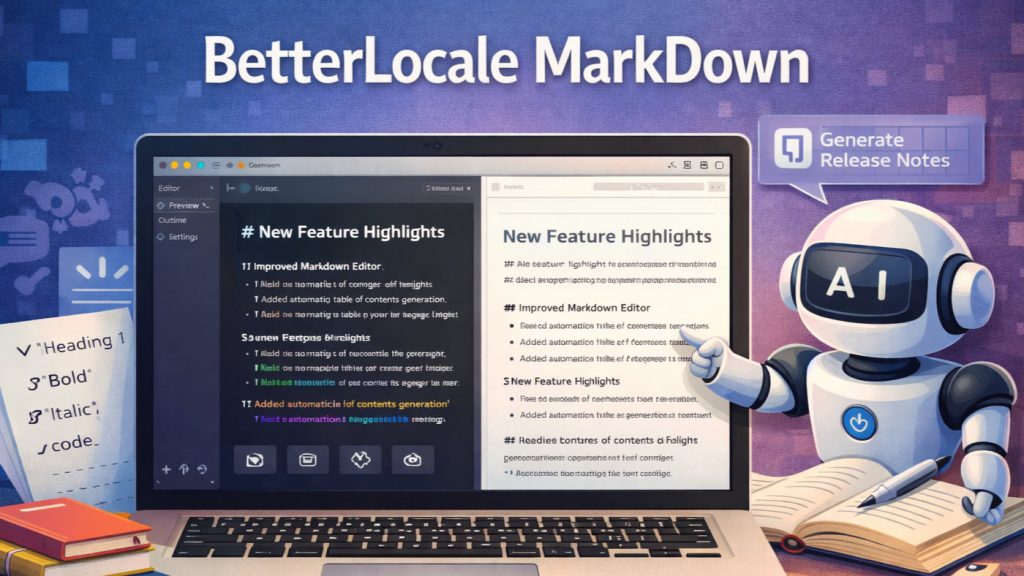
BetterLocale MarkDown
AI-assisted writing and editing in Markdown
by Christian Drapatz

A modern Markdown editor with optional AI integration
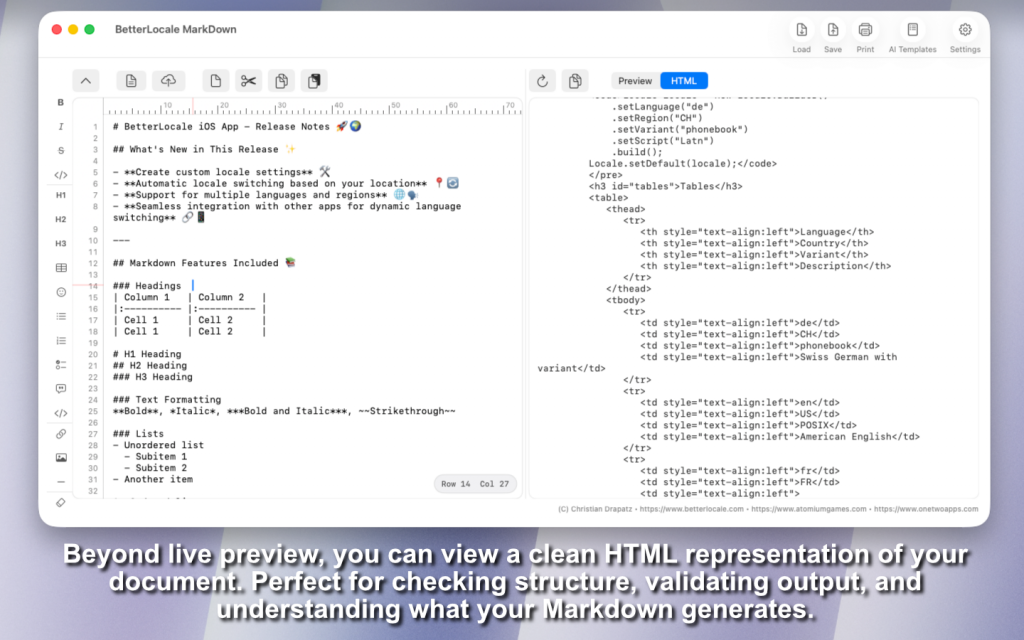
BetterLocale MarkDown is a powerful Markdown editor for macOS built for fast, structured writing. It focuses on a clean workflow with live preview, an HTML view, and reliable export, fully usable without any external services.
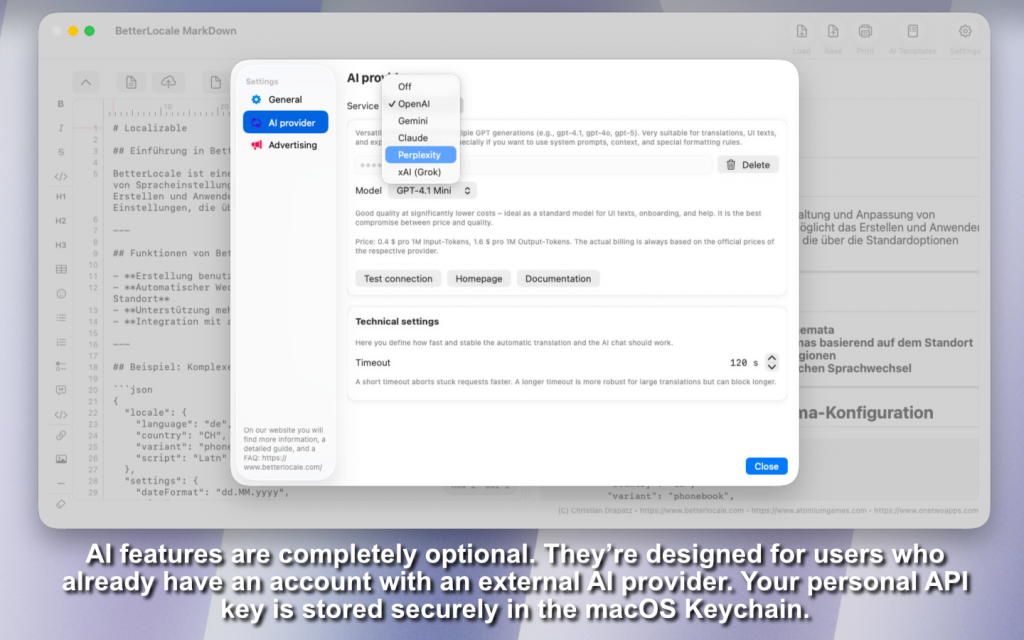
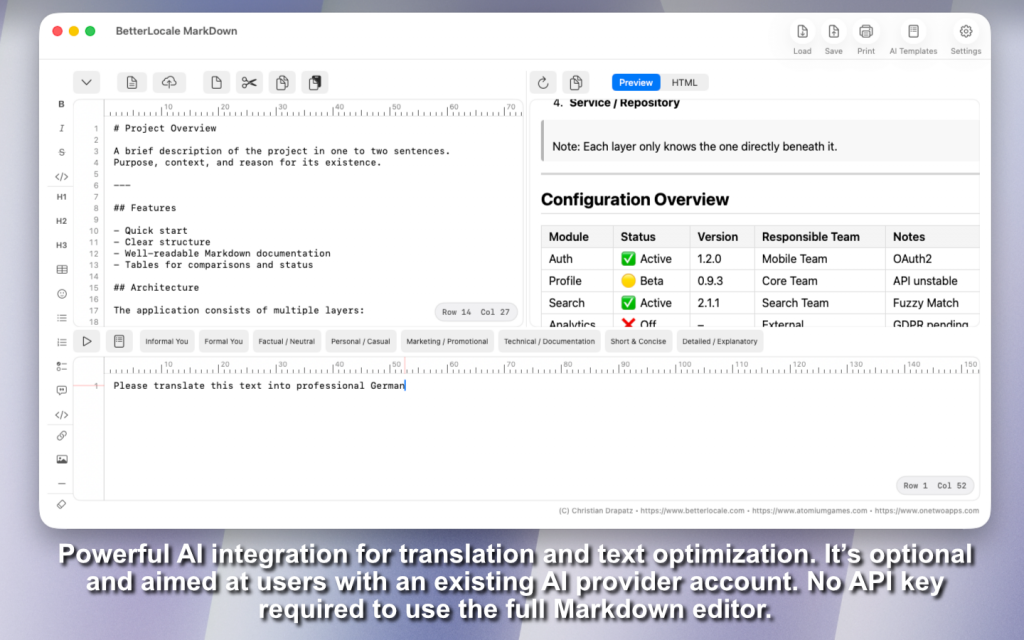
Optionally, you can connect the app to leading AI providers such as OpenAI, Google Gemini, Anthropic Claude, Perplexity AI, or xAI Grok. This enables writing, rewriting, style polishing, translation, and technical review directly inside the editor without switching apps.
AI integration is intended for users who already have their own account with the respective provider. It’s an add-on for advanced workflows, while the core app remains fully functional and independent at all times.

Available on the Apple App Store
One click, and AI helps you write, refine, and translate your texts.
Why BetterLocale Markdown
BetterLocale Markdown is more than an editor. It combines fast, focused writing with optional AI assistance, modern macOS integration, and a clean, professional workflow. Fully usable without external services, and expandable when you want more.

Have you tried the app “BetterLocale Code”?
BetterLocale Code is your macOS tool for Xcode localizations. Manage and convert XCStrings, .strings, and .lproj files in one place, import languages anytime, and keep translations clean and consistent even with AI support.
Getting started
Welcome to the Editor
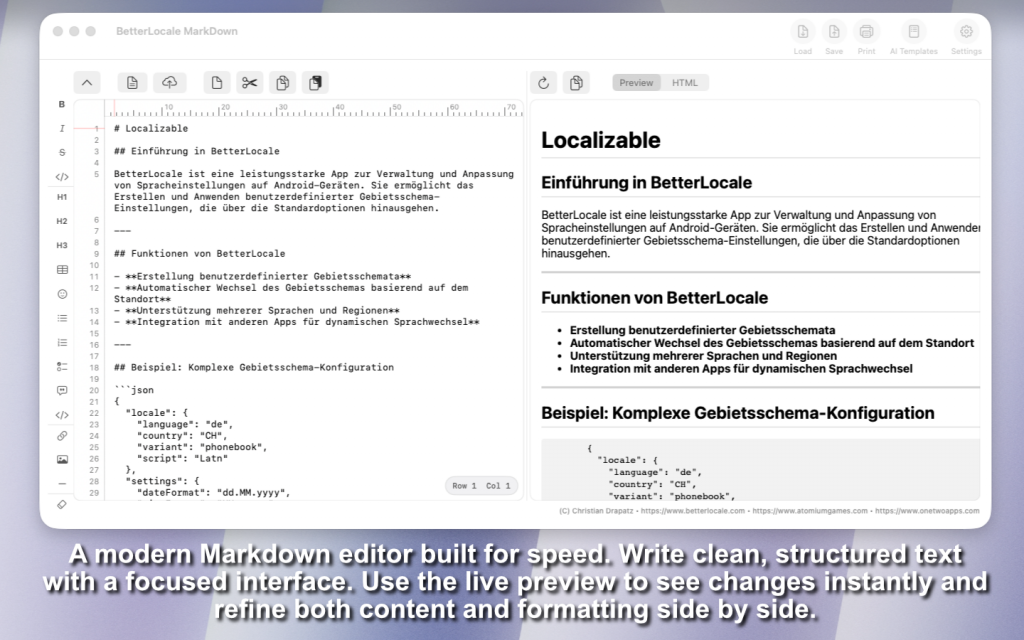
With BetterLocale Markdown, you can start right away. The editor is intentionally clean and streamlined so you can focus entirely on your writing. You work directly in Markdown without distractions and always stay in control of structure and formatting.
Write Markdown with Ease
Markdown is easy to understand and quick to learn. Headings, lists, bold or italic text, links, and code blocks are defined directly within the text. If you already know the syntax, you can start typing immediately. If not, the app helps you get started.
Support from the Left Sidebar
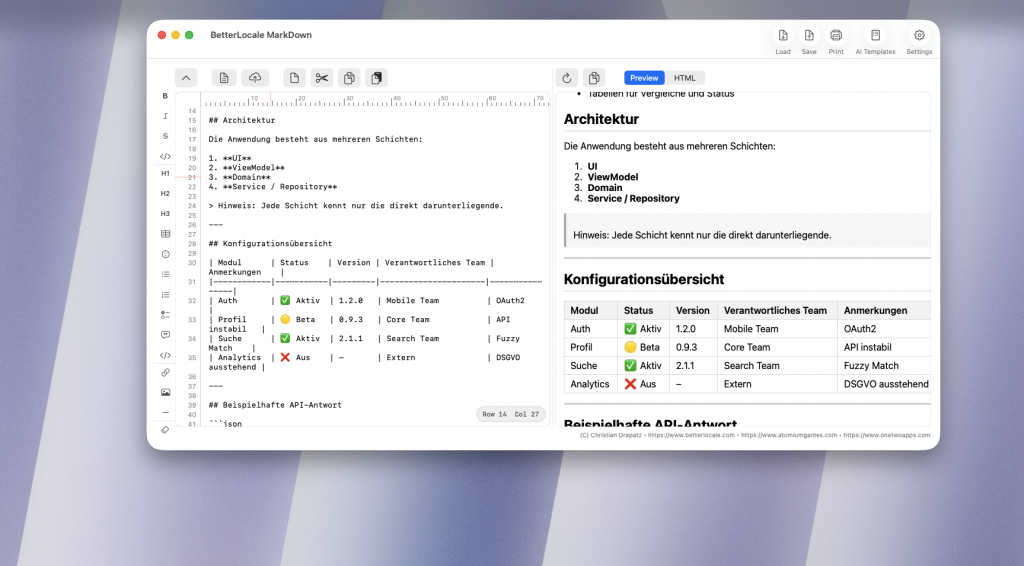
The left sidebar helps you quickly select and insert Markdown commands. You can add formatting with a click without memorizing every syntax rule. This is especially useful for more complex elements like tables, quotes, or structured sections. You work efficiently while keeping your code clean and readable.
Tables and Emojis Made Simple
Tables can be created and expanded easily. Their structure is clearly displayed, making it simple to organize even larger amounts of content. You can also insert emojis directly into your text to visually enhance content or add emphasis—ideal for documentation, App Store descriptions, or blog posts.
Real-Time Live Preview
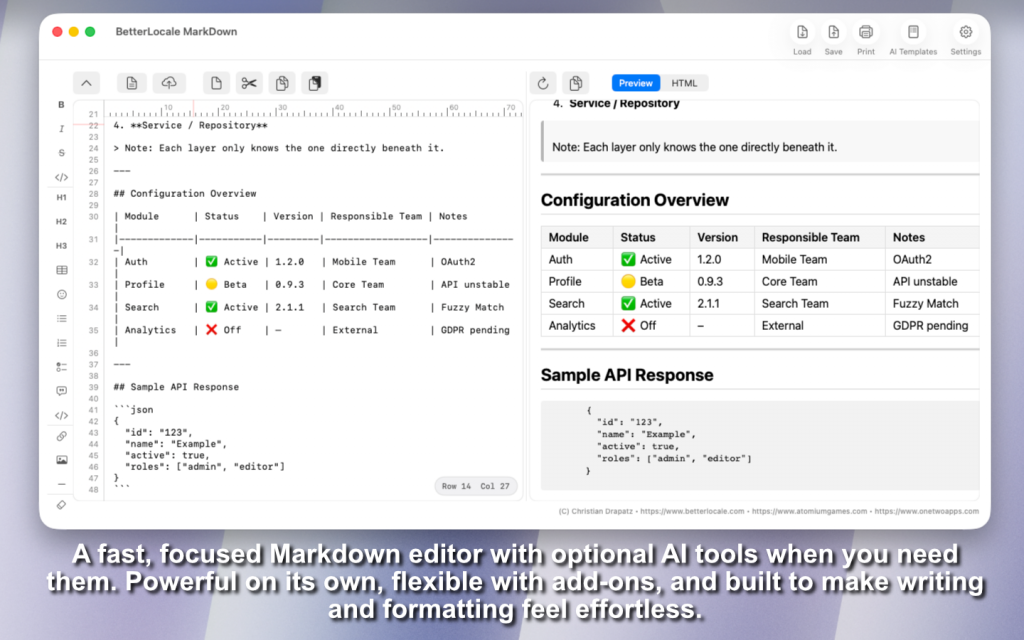
On the right side, you see your document rendered as a live preview. Every change in the editor is instantly reflected. You immediately see how your text will look, including formatting, table layout, and embedded elements. This saves time because there’s no need to switch between views.
BetterLocale Markdown combines structured writing with immediate visual feedback. You work precisely in code while simultaneously seeing the finished result.
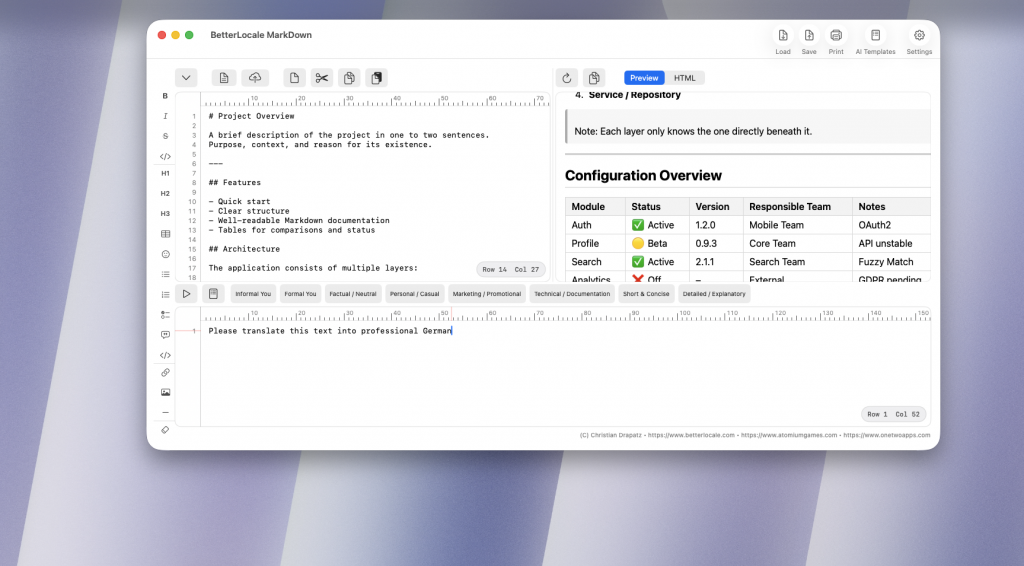
Once your Markdown text is ready, you can optionally process or translate content directly in BetterLocale Markdown using the AI provider of your choice. Currently supported providers include OpenAI, Google Gemini, Anthropic Claude, Perplexity AI, and xAI Grok.
To use these services, you need your own account with the respective provider. There you receive an API token that enables access to the interface and handles billing through your account. You enter this token in the settings of BetterLocale Markdown. It is stored locally on your Mac and is not transmitted to us. Before using AI features for the first time, it is recommended to run the built-in connection test. This allows you to verify that your token, endpoint, and network access are correctly configured without starting a full request.
Costs depend on the provider, the selected model, and the amount of text processed. Many services charge based on processing units such as tokens or characters. With OpenAI, for example, text is divided into tokens, and a single word may consist of multiple tokens depending on length and special characters.
Input (your text and context) and output (the generated result) are billed separately. This means you pay for both the content you send and the response generated by the model. To manage costs effectively, it’s advisable to process only relevant sections and use clear, concise instructions.
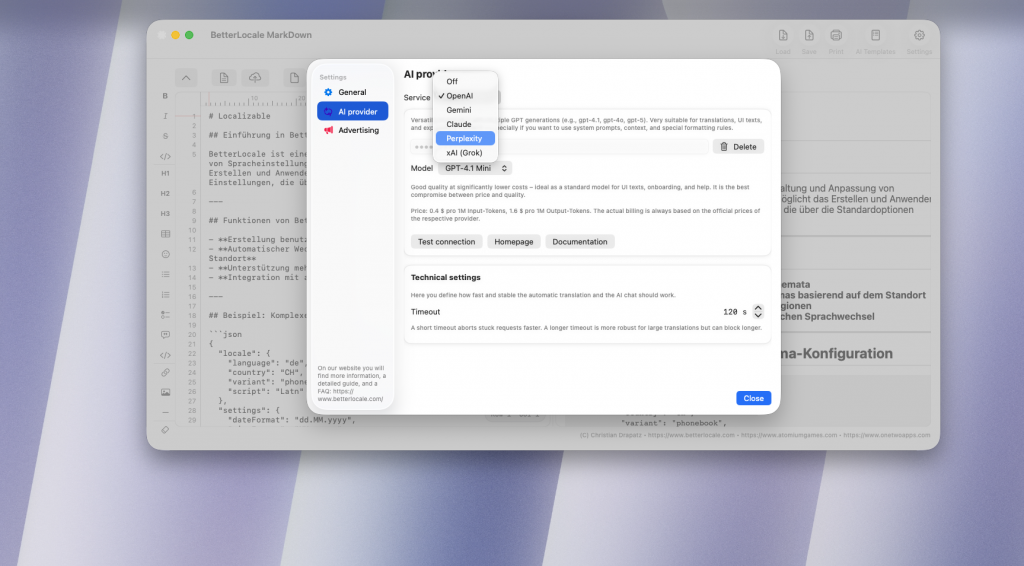
Create an AI API Key and Add It to the App
To use the optional AI features in BetterLocale Markdown—such as translation, text improvement, or the built-in AI chat—you’ll need a personal API key from an AI provider.
Think of this key as your individual access credential: it allows the provider to recognize that requests come from you and to bill usage through your own account. You enter the key in the app under Settings. It is stored locally on your Mac and is not shared with us.
BetterLocale Markdown currently supports the following providers: OpenAI, Google Gemini, Anthropic Claude, Perplexity AI, and xAI Grok.
Setup is very similar for all providers.
What you should know first
• API key = access code: You enter it in the app so it can send requests to the provider on your behalf.
• Costs are billed to you: The app sends the requests, but billing happens directly in your provider account.
• Billing is often required: Many providers only allow API requests after a payment method is added. Without billing you may get errors or very small limits.
Quick start: set up in 5 steps
1. Create an account or sign in
Go to your provider’s website and sign in.
2. Create an API key
Look for a section like API, Developer, Dashboard, or API Keys and create a new key there.
3. Copy the key and store it safely
Copy the key immediately and store it securely, ideally in a password manager.
Important: Many providers show the full key only once.
4. Enable billing/payment
Add a payment method or enable billing. Otherwise API requests often won’t work, or will be limited.
5. Enter the key in the app
Open the app → Settings → AI Providers → select a provider → paste the API key → Save
After that you can start translations and use the AI chat.
Provider guides (with direct links)
OpenAI (ChatGPT / OpenAI API)
1. Open the OpenAI dashboard:
https://platform.openai.com/
2. Create an API key:
https://platform.openai.com/settings/organization/api-keys
3. Set up billing/payment method:
https://platform.openai.com/settings/organization/billing/payment-methods
Tip: You often see the full key only once, later only partially.
Claude (Anthropic)
1. Open the Claude console:
https://platform.claude.com/
2. In the console, go to Account Settings and create an API key there.
3. Enable billing in the console so you can use the API.
Note: It previously used console.anthropic.com in some places; it is now moving to platform.claude.com and may redirect.
Gemini (Google)
1. Open Google AI Studio (API keys):
https://aistudio.google.com/app/apikey
2. If you don’t have a project yet, AI Studio often creates a default project automatically. Otherwise select/import a Google Cloud project.
3. Create and copy the API key.
Gemini API key documentation:
https://ai.google.dev/gemini-api/docs/api-key
PerplexityAI
1. Open account/settings:
https://www.perplexity.ai/account
2. In Settings, open the </> API tab and generate a key (“Generate API Key”).
3. Alternatively (depending on the UI), use the API portal:
https://www.perplexity.ai/account/api
Optional: API groups can be useful if you want separate keys (e.g. “Dev” and “Prod”).
xAI Grok
1. Open the xAI account/developer area:
https://x.ai/
2. In the developer/API area, create a new API key and copy it.
3. Enable billing/payment if required so API requests are not blocked.
Note: The exact location of the API key page may change depending on the xAI UI. Search for “API”, “Developers”, or “API Keys”.
Notes on costs and privacy
• Using AI APIs is usually paid and billed directly to your provider account, typically based on text volume (tokens).
• The app sends only the content you select (e.g. the texts to translate) plus your instruction to the provider.
• Your API key is stored only locally on your Mac in the Keychain and is not shared with third parties.
Security
Treat your API key like a password:
• Do not share it and do not copy it into public repos.
• If you think the key is compromised, disable it in the provider dashboard and create a new one.
• If you use multiple devices or projects, it’s best to use a separate key per device/project so you can revoke access without breaking everything.
More features
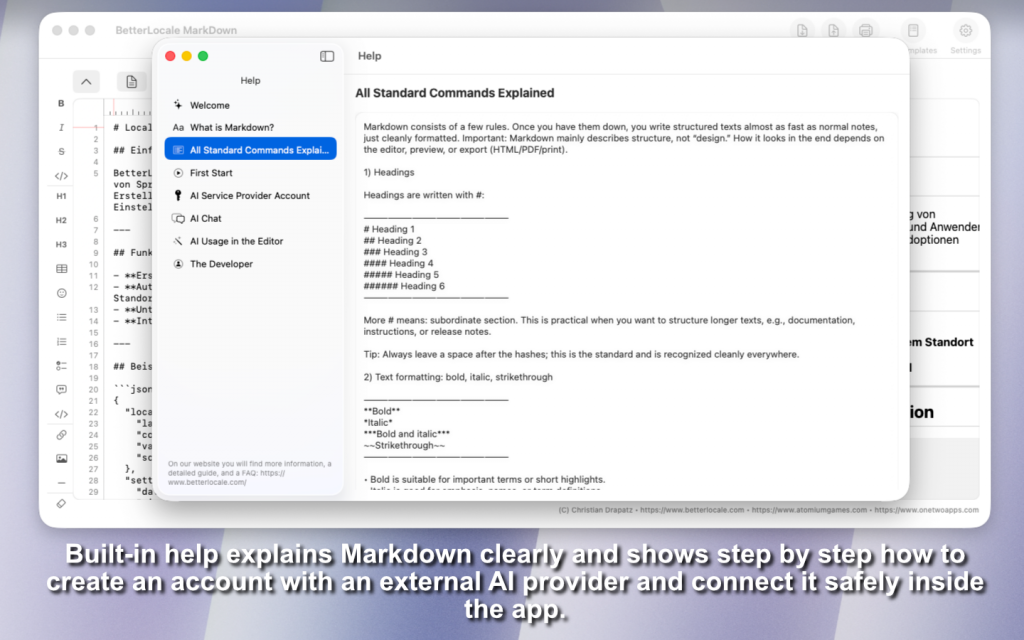
If you have questions about using BetterLocale Markdown or get stuck at any point, the app includes a Help section that explains the most important features clearly and concisely. You’ll also find examples of common workflows—such as writing, previewing, exporting, or optionally working with AI—so you can move forward quickly.
And if you notice something that could work better or you find a bug, you can send feedback directly from within the app. That way, your feedback goes exactly where it belongs, without having to search for contact details or describe everything the hard way.
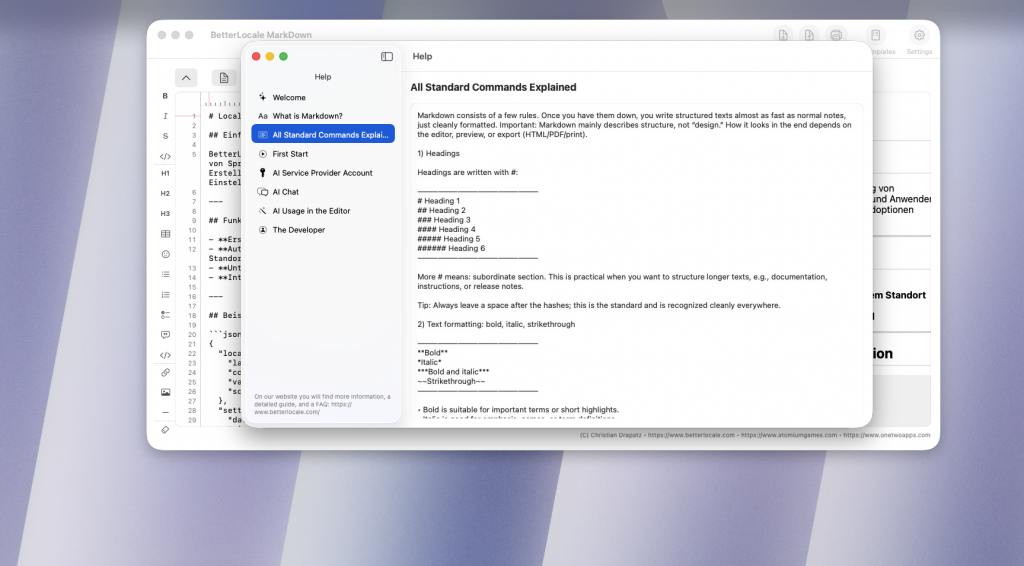
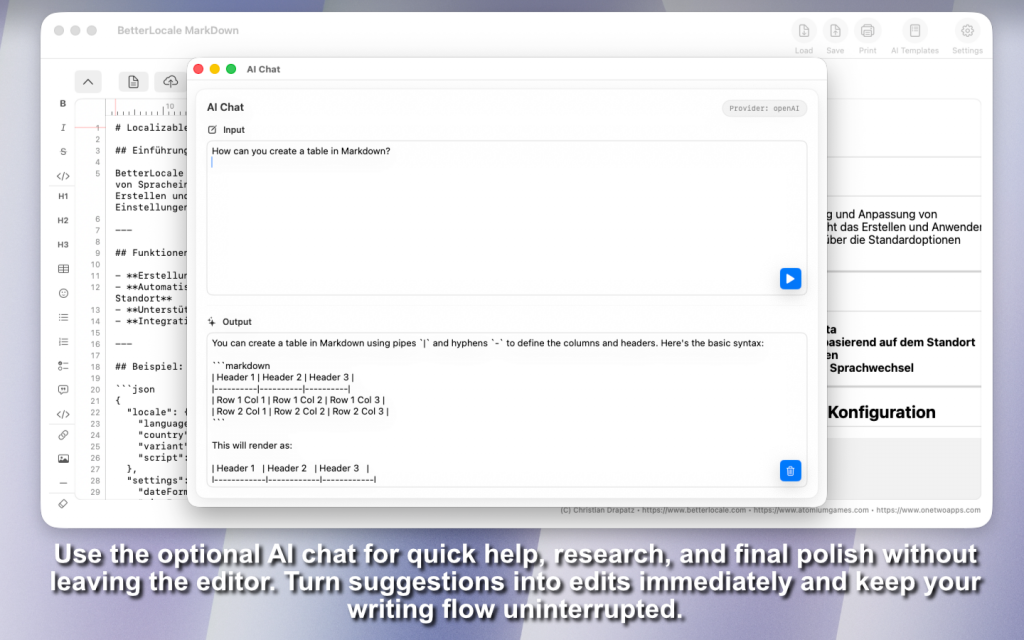
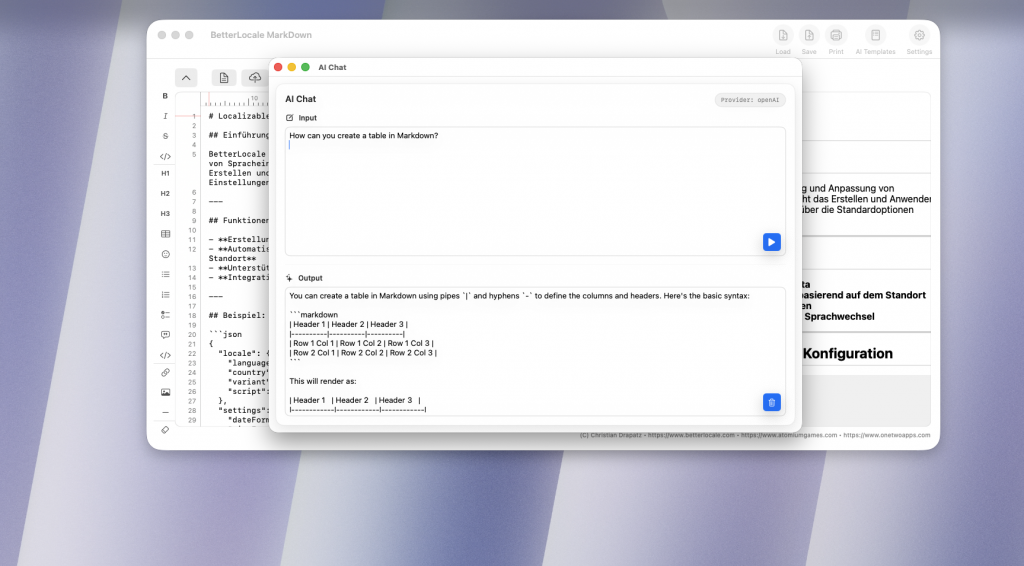
The AI chat in BetterLocale Markdown is designed to give you quick help without leaving the editor. You can use it to clarify short questions, improve wording, or generate multiple text variations—for example for different audiences or tones. It can also help with structure and flow, such as when a section feels rough or important points are missing. In addition, the chat is great for brainstorming ideas so you can copy the best version directly into your Markdown document.
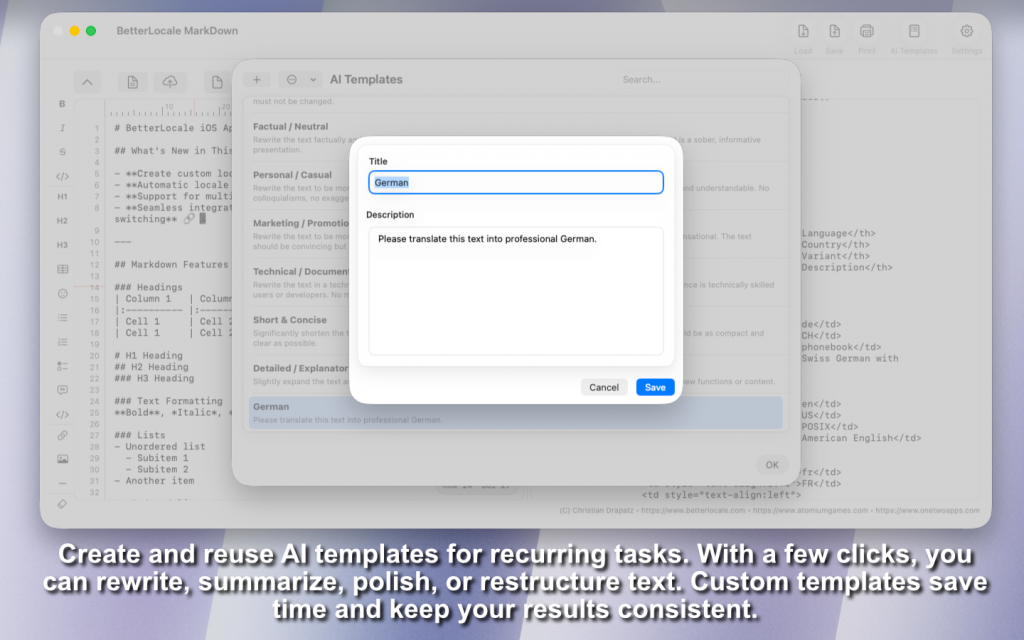
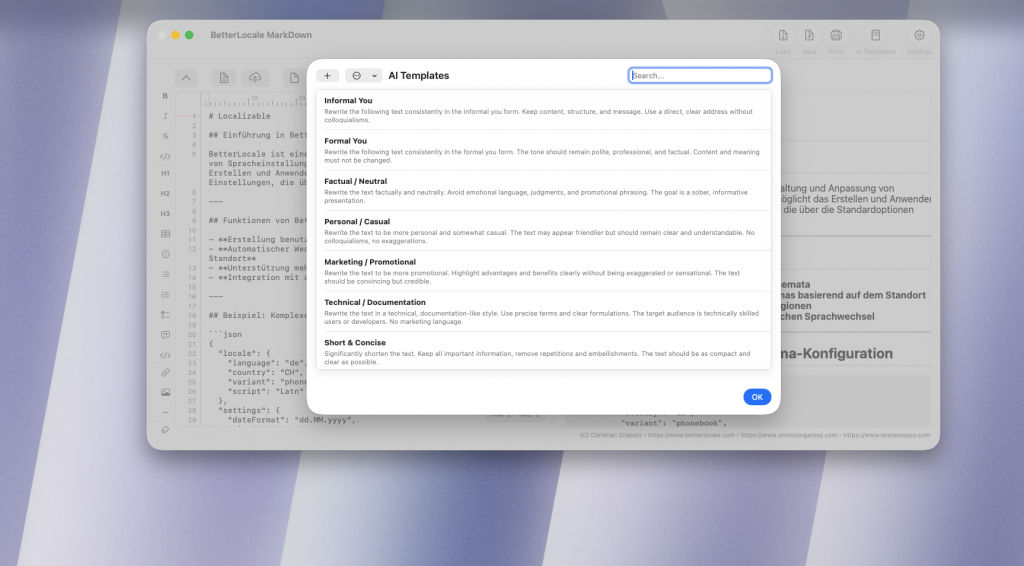
In BetterLocale Markdown, you can create your own templates for optional AI usage so you don’t have to rewrite the same instructions every time. You define once how the result should look—for example shorter, clearer, friendlier, more technical, or as a clean translation.
You can then select these templates depending on the task and apply them directly to your current Markdown text. This saves time because your instructions stay consistent, making the results more reliable. It’s especially useful for recurring work like App Store copy, release notes, documentation, or support replies.
You can create multiple templates, give them meaningful names, and switch between them anytime. This turns constant copy and paste into a clean, repeatable workflow.
Have you tried the OneTwoApps apps for iPhone and iPad?

ScanBox

My Budget Book

My Budget Book Pro
Pricing
BetterLocale Markdown is a one-time purchase of €3.99 with no subscription and no in-app purchases. You pay once and can use the app permanently—no recurring costs and no hidden limitations. I want the purchase to stay worthwhile long-term, which is why BetterLocale Markdown is continuously improved. This includes workflow enhancements, editor optimizations, new export and rendering options, and the integration of additional AI services when they make sense.
If issues come up in daily use or something doesn’t work reliably, I address it actively and fix it. There’s also support so you’re not on your own—whether it’s setup, optional AI provider connections, or Markdown editor features. This way, BetterLocale Markdown keeps moving forward and gets more stable and better with every update.
Privacy
BetterLocale Markdown stores your projects and language data locally on your Mac only. Data is sent outside the app only if you choose to use optional AI features, such as translations or chat. In that case, the app sends only the content you deliberately select, along with your request, to the provider you choose.
Your API keys never leave your Mac. They are stored locally and securely in the macOS Keychain.
For more details, please refer to the full privacy policy.
Have you checked out the games from AtomiumGames?


Crazy Monsters

Tower Arena: Time for heroes

Strategy War: Battle Game

Battle Alliance: Tower Defense
FAQ
BetterLocale Markdown is a modern Markdown editor with optional AI integration. The app works fully without external services and can be extended with AI features if needed. Here you’ll find answers to the most important questions about usage, costs, security, and workflow.
What is BetterLocale Markdown?
BetterLocale Markdown is a powerful Markdown editor for macOS. It focuses on fast, structured writing with live preview, HTML view, printing, and export features. Optionally, you can integrate external AI services to create, revise, or translate text. However, all core features work without AI at any time.
Which AI services are supported?
The app supports multiple providers, including OpenAI, Google Gemini, Anthropic Claude, Perplexity AI, and xAI Grok. Depending on your task, you can choose the appropriate service—for example for translation, text optimization, or research. Usage is flexible and intended for users with an existing account with the respective provider.
Do I need to provide an API key?
To use the optional AI features, you need your own API key from the respective provider. The app stores it securely in the macOS Keychain. No keys are stored in files. Without an API key, AI features are unavailable, but the Markdown editor itself works fully.
What does AI usage cost?
Costs are charged directly by the respective AI provider and depend on text length and frequency of use. In practice, with normal usage, costs are often in the lower euro range per month. Occasional short requests typically cost only a few cents.
Do I need a subscription for the app?
No. BetterLocale Markdown is a one-time purchase. You pay once and can use the app permanently. There are no subscriptions, no automatic renewals, and no hidden fees. Updates are provided regularly.
Does the app work without AI?
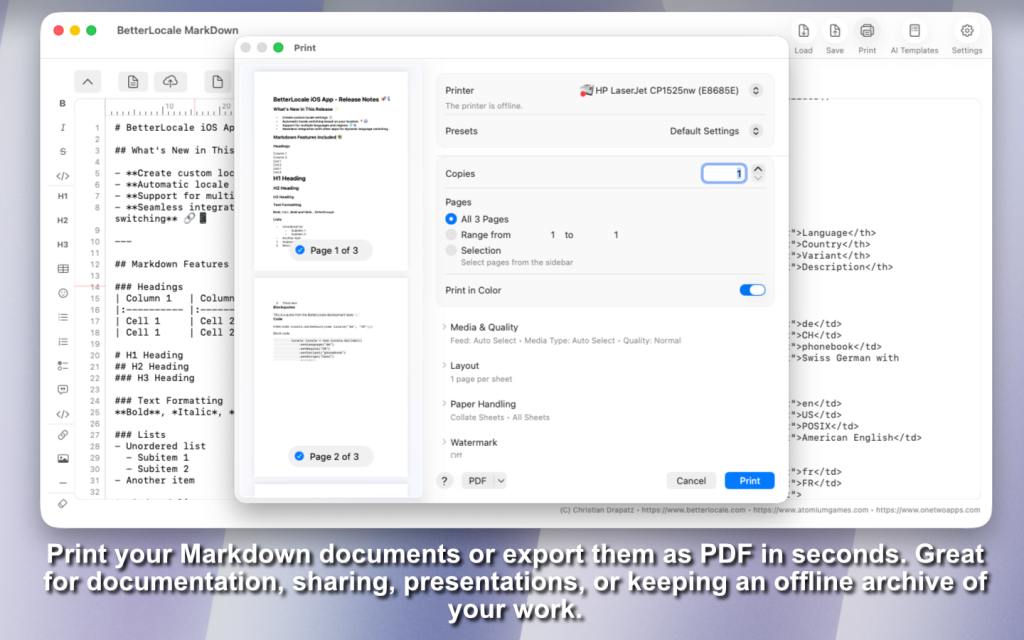
Yes. The app is fully usable without external AI services. You can create and edit Markdown files, view live previews, inspect HTML output, print, or export to PDF. AI is an optional extension, not a core requirement.
How secure is my data?
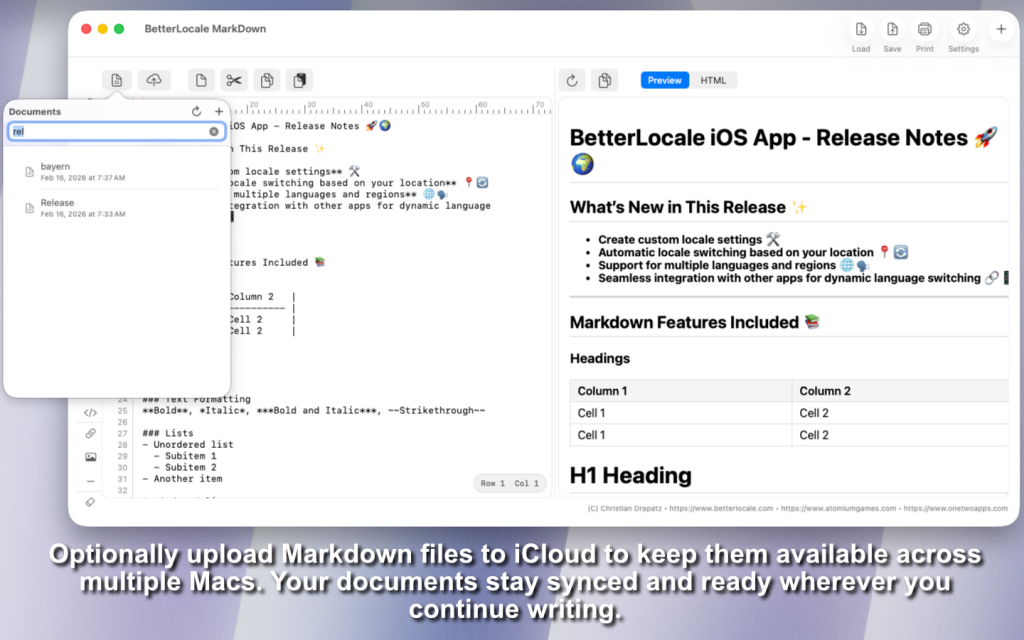
Your Markdown files remain local on your Mac or optionally in your iCloud account. API keys are stored exclusively in the macOS Keychain. AI requests are sent directly to the chosen provider and are not routed through our own servers.
Is the app actively developed?
Yes. BetterLocale Markdown is continuously improved. This includes editor enhancements, workflow optimizations, compatibility updates for new macOS versions, and—when appropriate—additional AI integrations. Real-world feedback is actively incorporated into updates.
Legal notice / Privacy
Provider
Christian Drapatz
Kämpenstraße 42
45147 Essen
Deutschland
Contact
Email: support (at) onetwoapps.com
Phone: +49 (0) 171 7849462 (business inquiries only)
Web: https://www.onetwoapps.com
Note
BetterLocale MarkDown is a macOS app and is distributed and sold via the Apple App Store.